Documentation
E2Easy Documentation
E2Easy is a no-code platform for recording, editing, and running end-to-end browser tests. Use the Chrome extension or Claude Connector to create tests, manage them in your workspace at E2Easy App, and replay flows with assertions, credentials, and run history.
Introduction
E2Easy helps teams automate regression testing without writing scripts. You record real browser sessions - clicks, typing, navigation, scrolling - and save them as structured tests in your workspace. The same tests run from the Chrome extension, the E2Easy web app, or server runners, with screenshots, video, and accessibility findings when a run fails.
Most people start with the Chrome extension: install it, sign in, record a flow once, and replay it before every release. You can also create tests by describing flows to Claude via the E2Easy Connector. Every test lives in your project at E2Easy App - folders, step editor, variables, credentials, and run history stay in one place regardless of how the test was created.
Guides
Find the best guide to start creating tests with E2Easy - either by recording flows in the Chrome extension or by generating steps through Claude.
Guide
Chrome extension
Record real sessions, add assertions and credentials, and compare E2Easy to manual and coded E2E.
Read the extension articleGuide
Claude Connector
Create and manage tests from Claude chat - setup, example prompts, and troubleshooting.
Open Claude Connector docsRecording a Test
Start recording from the extension popup or workspace. E2Easy opens a focused recording window for your starting URL and captures clicks, typing, navigation, scrolling, viewport size, waits, and assertions. Recording continues across reloads and single-page app route changes. Use Cancel on the toolbar to discard without saving.
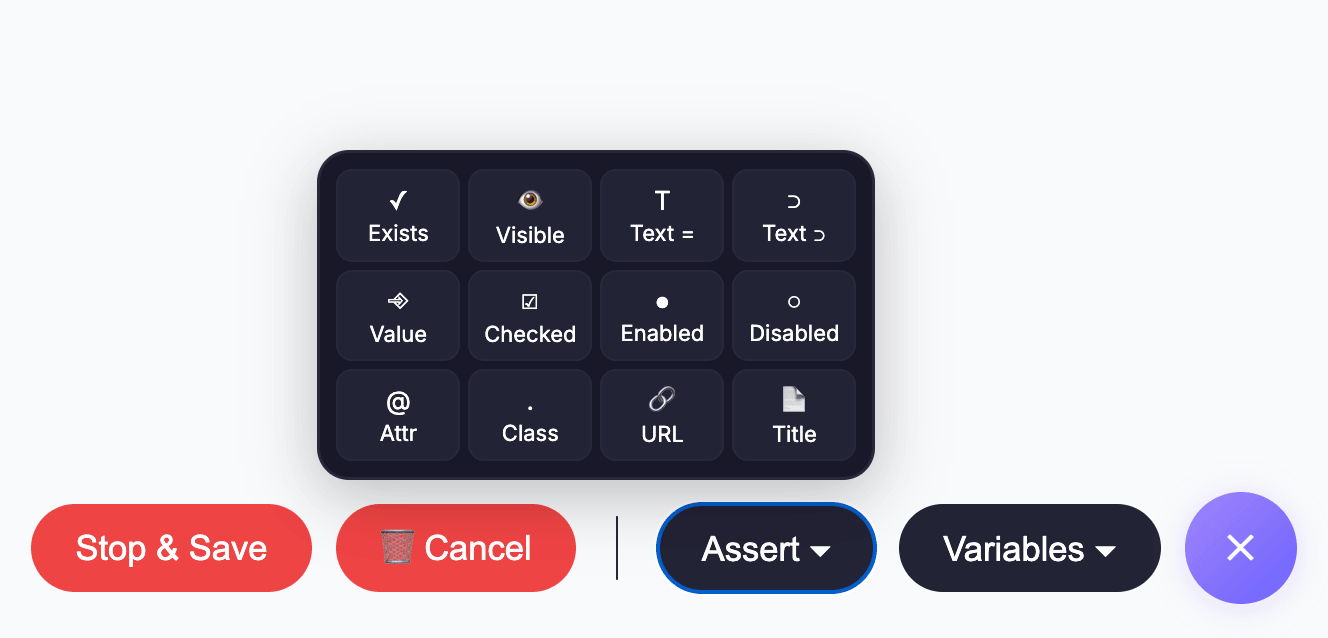
The floating toolbar includes Assert (pick a check type, then an element when required) and Variables (Credentials, project variables, and Built-in helpers). Prefer stable paths: sign in first, avoid extra clicks, and pause on dynamic content. In Project Settings, set custom selector attributes (for example data-testid) so steps stay reliable after UI changes.
Playing Back a Test
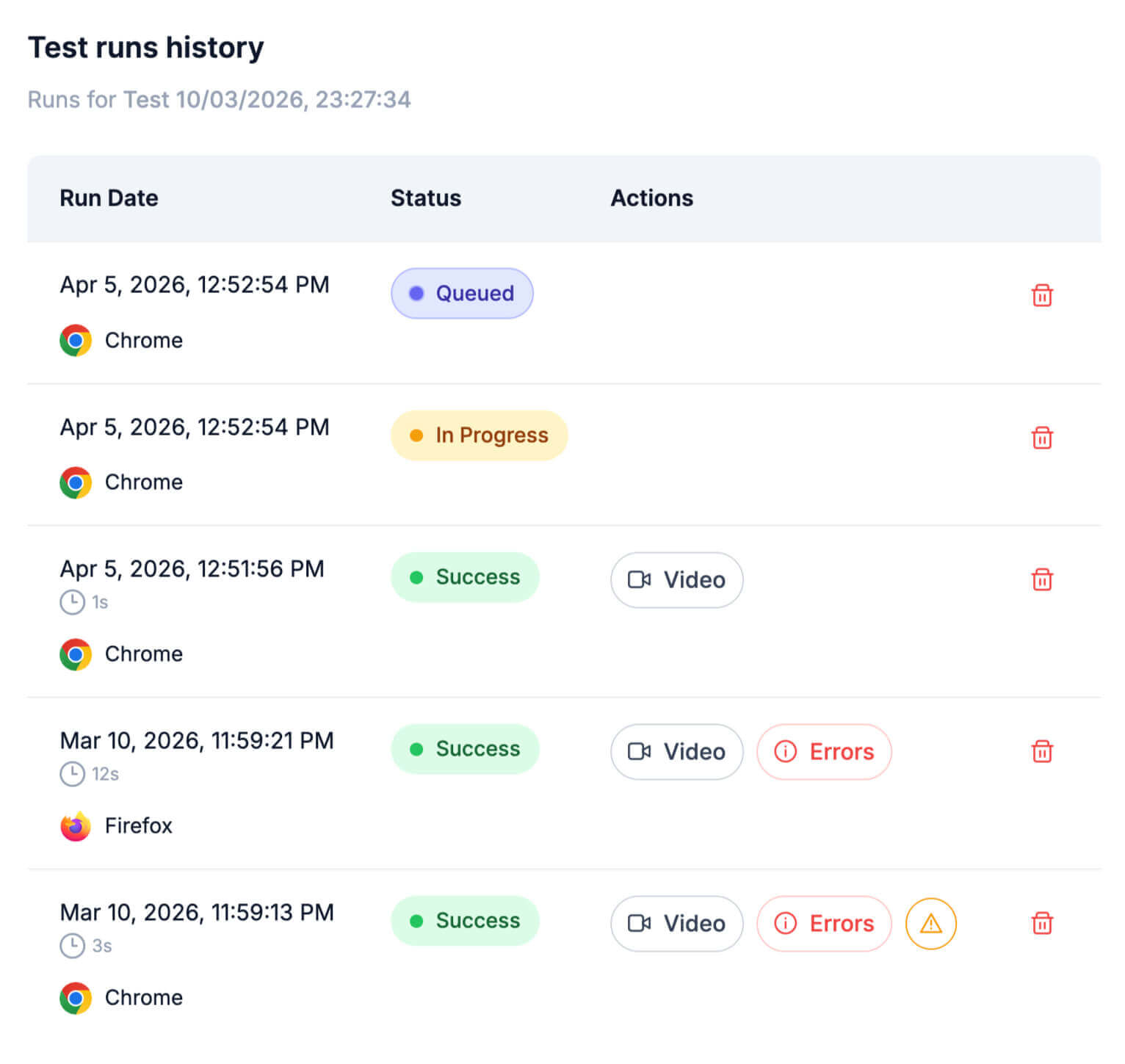
Run tests from the extension popup, Manage Records, or the workspace. Playback replays steps in order in a real browser. Depending on your plan, runs may execute locally or on server runners with a chosen browser profile. Each run records status, duration, and metadata.
Playback expects a page structure close to what was recorded. When selectors or timing drift, edit steps instead of re-recording entirely. Run history shows the failing step plus screenshots, video, and accessibility markers to speed up debugging.
Managing Tests
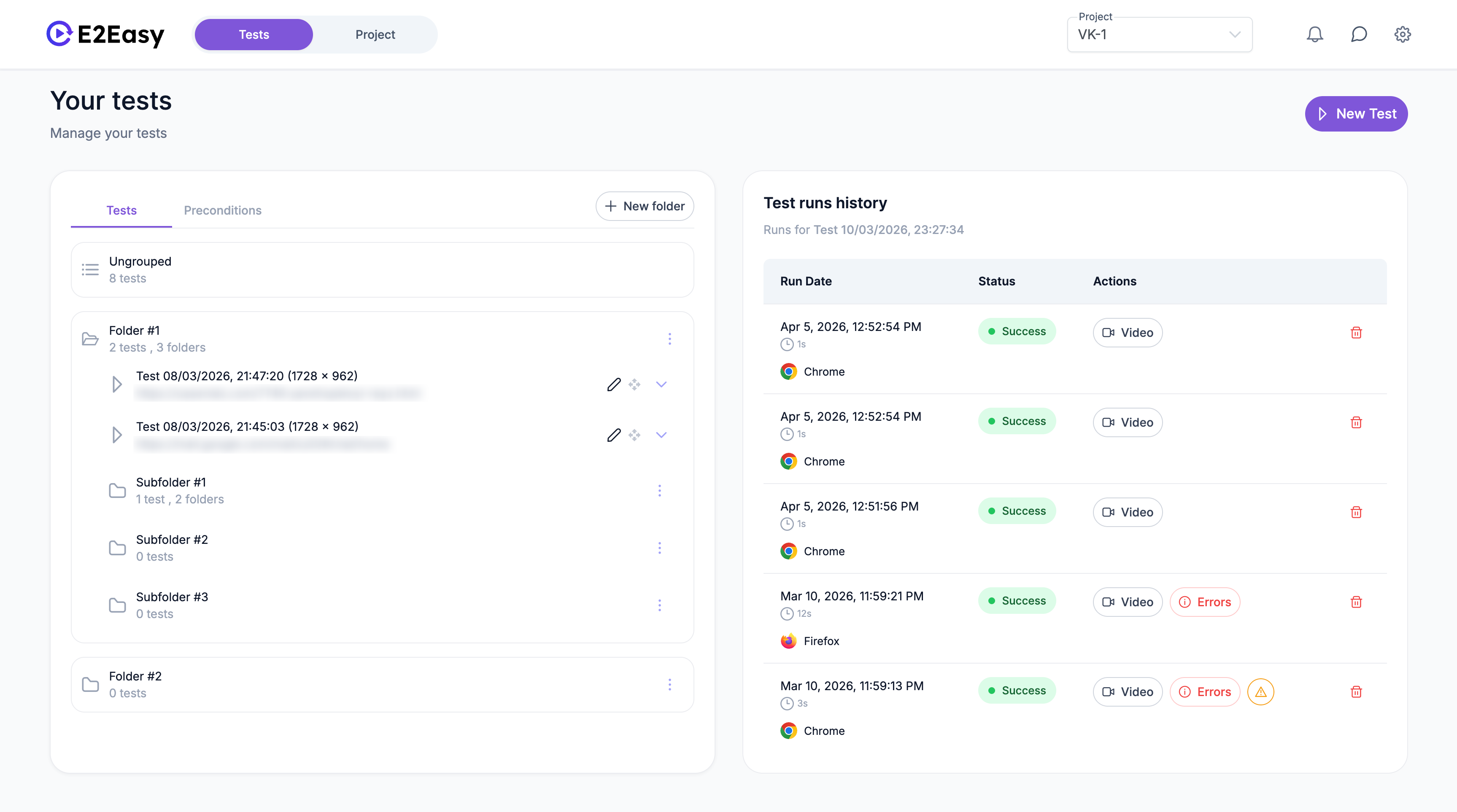
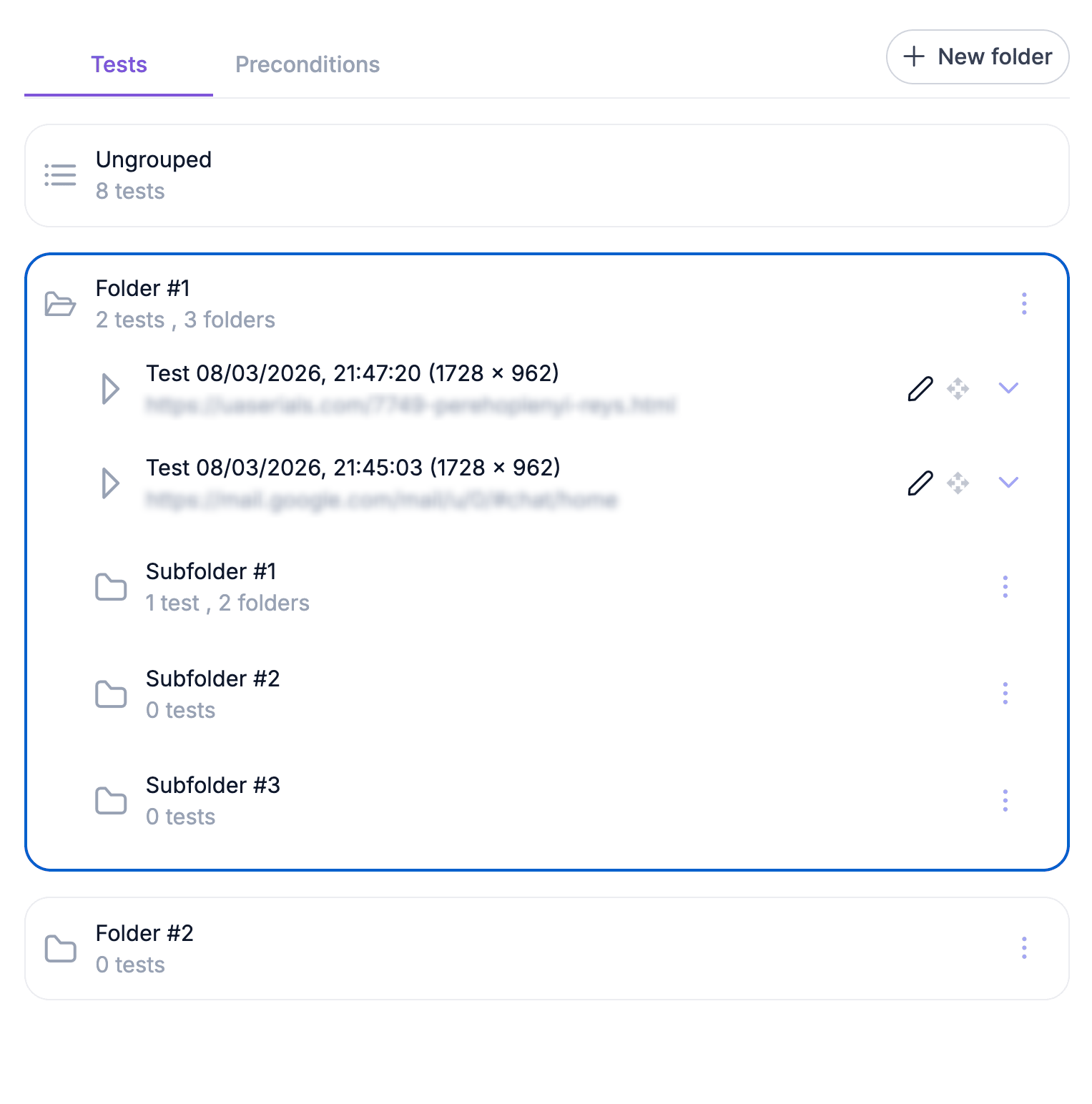
Tests belong to your project and can be organized in nested folders. Rename, drag-and-drop, assign test types, run, or delete from the extension or app. Mark a test as a Precondition to reuse it inside other tests (for example a login flow). Insert Preconditions from the step editor to compose longer scenarios without duplication.
Manage project variables, credentials, custom values, and environment-specific data under Project Settings. The same vault and variable references work during recording and playback, so secrets never appear in plain step text.
Step Types and Recorded Events
Saved tests use a fixed set of step types during playback. While recording, the extension captures many low-level browser events; only meaningful actions are kept when you save (keystrokes on one field merge into a single type step, redundant navigations after clicks are removed). Use the reference table below when reading or editing steps in text mode.
| Type | Description |
|---|---|
click | Activate a button, link, checkbox, or other clickable element. |
type | Enter text into an input or textarea. Consecutive keystrokes on the same field are merged into one step when the recording is saved. |
navigate | Open a URL or follow SPA navigation. Duplicate navigations caused by a preceding click or Enter key are removed automatically. |
scroll | Scroll the page to a captured scroll position. |
wait | Pause playback for a configured duration (for example after dynamic content loads). |
setViewport | Resize the browser viewport to match the size used during recording. |
assertion | Verify page state, element properties, URL, or title. See assertion operators below. |
Assertions
Assertions verify outcomes - not just that a click happened. Add them during recording via Assert on the toolbar, or later in the step editor. Element-level checks require selecting the target on the page; URL and title checks do not. Soft assertions let a run continue after a failure when you enable that option on the step. Place assertions after sign-in, form submit, or navigation to catch regressions early.
| Operator | Requires element | Description |
|---|---|---|
exists | Yes | Element is present in the DOM. |
notExists | Yes | Element is not present. |
visible | Yes | Element is visible to the user. |
hidden | Yes | Element exists but is not visible. |
equals | Yes | Element text matches an expected string exactly. |
contains | Yes | Element text includes a substring. |
hasValue | Yes | Input or textarea value matches the expected value. |
checked | Yes | Checkbox or radio is checked. |
enabled | Yes | Control is enabled. |
disabled | Yes | Control is disabled. |
hasAttribute | Yes | Element has a given attribute (name and value). |
hasClass | Yes | Element has a CSS class. |
count | Yes | Number of matching elements equals the expected count. |
urlContains | No | Current page URL includes a substring. |
titleEquals | No | Document title matches the expected string. |
Variables and Credentials
Project variables keep tests maintainable and secrets out of step text. Credentials store logins and passwords in your vault - during recording, choose a credential and map Use login on field or Use password on field to an input. Built-in variables provide generated data from the server (names, emails, numbers). Custom variables hold values you define for the project. Environment variables scope values per environment so one test can target staging or production. Open Variables on the recording toolbar or Project Settings to copy references into steps.
| Category | Description |
|---|---|
| Credentials | Stored logins and passwords in your project vault. During recording, choose a credential and map login or password to a field without embedding secrets in step text. |
| Built-in | Server-provided helpers for generated test data (for example random names, emails, or numbers). Copy a variable reference from the Built-in tab in the recording toolbar or Project Settings. |
| Custom | Project-specific values you define once and reuse across tests (staging URLs, product codes, shared labels). |
| Environment | Values scoped to an environment (production, staging, and so on) so the same test can run against different targets without re-recording. |
Built-in variable names are loaded from your project on the server - open the Built-in tab in the recording toolbar or Project Settings to copy the exact reference for your workspace.
Settings
Profile settings cover appearance and language. Project Settings include default viewport, custom selector attributes, Variables (Credentials, Built-in, Custom, Environment), and Test Types for labeling. The extension may prompt you to apply updates when a newer version is published to the Chrome Web Store.
Troubleshooting
Recording does not start or capture actions. Confirm you are signed in, a valid tab is selected, and recording started before interacting. Refresh the tab and try again. For unstable selectors, add data-testid or similar attributes in your app and list them in Project Settings.
Playback fails or stops mid-flow. Layout, timing, or content may have changed. Refresh and retry, then edit selectors, waits, assertions, or Preconditions. Inspect run history, screenshots, video, and accessibility output for the failing step.
Extension seems stuck or out of date. Use Apply update in the extension UI when offered, or reload E2Easy on chrome://extensions and refresh the test tab. Confirm the latest Chrome Web Store version is installed.