Productivity • September 28, 2026
How to Sync Google Calendar With Outlook (Two-Way, Real Time)
Learn how to sync Google Calendar with Outlook, both ways and in real time. Compare the free ICS method, phone apps, and calendar sync tools, and stop getting double-booked across work and personal calendars.
Most people no longer live in one calendar. Work runs on Outlook, personal life runs on Google Calendar, a client invites you to their Google Workspace, and your family shares an iCloud calendar. Each calendar only knows about its own events, so colleagues book meetings over your dentist appointment and you find out when it is too late.
That is why "how to sync Google Calendar with Outlook" is one of the most searched calendar questions on the internet. The good news: there are several ways to do it. The bad news: the free built-in method is one-way and can take hours to update.
In this guide you will learn:
- how to show Google Calendar in Outlook and Outlook in Google Calendar, step by step;
- why the free method is slow and one-way, and when that is a problem;
- how two-way calendar sync works and how to set it up in about a minute;
- how to keep personal events private while still blocking your time at work;
- which method fits freelancers, remote teams, and families.
Quick answer: how do you sync Google Calendar with Outlook?
There are three ways to connect Google Calendar and Outlook:
- Subscribe with an ICS link (free, one-way): copy the secret iCal address from Google Calendar settings and add it in Outlook with Add calendar → Subscribe from web. Outlook shows your Google events as read-only and refreshes them every few hours.
- Add both accounts to one app (view only): add Google and Outlook accounts to your phone or the Outlook app. You see both calendars in one place, but they do not share busy times with each other.
- Use a two-way calendar sync tool (real time): connect both accounts once, and every new event is copied across as it happens, with optional "Busy" blocks that hide private details.
If you only need to see your Google events in Outlook, method 1 is enough. If you need colleagues and booking tools to know when you are busy, you need method 3.
Comparison of calendar sync methods
| Method | Direction | Update speed | Blocks your time for others? | Privacy control | Cost |
|---|---|---|---|---|---|
| ICS subscription | One-way | Hours (often 3–24 h) | No, read-only overlay | None, full details shared | Free |
| Phone or Outlook app with both accounts | View only | Instant on that device | No | Not applicable | Free |
| Manual copy of events | Whatever you copy | As fast as you type | Yes | Full control | Free, but your time |
| Two-way calendar sync tool | One-way or two-way | Seconds | Yes, real events in each calendar | "Busy" only, filters | Free plans and paid plans |
Method 1: Add Google Calendar to Outlook with an ICS link
This is the free, built-in way to show Google events inside Outlook.
Step 1: Copy the secret address from Google Calendar
- Open Google Calendar on a computer.
- In the left sidebar, hover over the calendar you want to share, click the three dots, and choose Settings and sharing.
- Scroll to Integrate calendar.
- Copy the Secret address in iCal format.
Treat this link like a password: anyone who has it can see all your events.
Step 2: Subscribe in Outlook
Outlook on the web or the new Outlook for Windows:
- Open the Calendar view.
- Click Add calendar → Subscribe from web.
- Paste the iCal link, give the calendar a name and color, and click Import.
Classic Outlook for Windows:
- Go to Calendar → Add Calendar → From Internet.
- Paste the link and confirm.
Outlook for Mac and mobile:
Add the subscription once in Outlook on the web. It is saved to your Microsoft account, so it also appears in Outlook for Mac and the Outlook mobile app after the account syncs.
Method 2: Add Outlook Calendar to Google Calendar
The same trick works in the other direction.
- In Outlook on the web, open Settings → Calendar → Shared calendars.
- Under Publish a calendar, choose the calendar and set permissions to Can view all details.
- Click Publish and copy the ICS link.
- In Google Calendar, click + next to Other calendars → From URL.
- Paste the ICS link and click Add calendar.
Your Outlook events now appear in Google Calendar as a separate, read-only calendar.
Why the free ICS method is not real sync
The ICS method looks like sync, but it behaves more like a slow screenshot of your other calendar.
| Limitation | What happens in practice |
|---|---|
| Slow refresh | Google and Outlook poll subscribed calendars on their own schedule, so new events can take many hours to appear |
| One-way and read-only | You cannot edit or accept events from the subscribed copy |
| Not "real" busy time | Subscribed events usually do not block your free/busy status, so colleagues and scheduling links still see you as free |
| No privacy control | The link shares every title, description, and location |
| Security risk | A leaked secret link exposes your full calendar |
| No filters | You cannot skip all-day events or specific event types |
For personal use, that may be fine. For anyone who gets booked by colleagues, clients, or scheduling tools, it leads to exactly the double bookings you wanted to avoid.
Method 3: Two-way calendar sync in real time
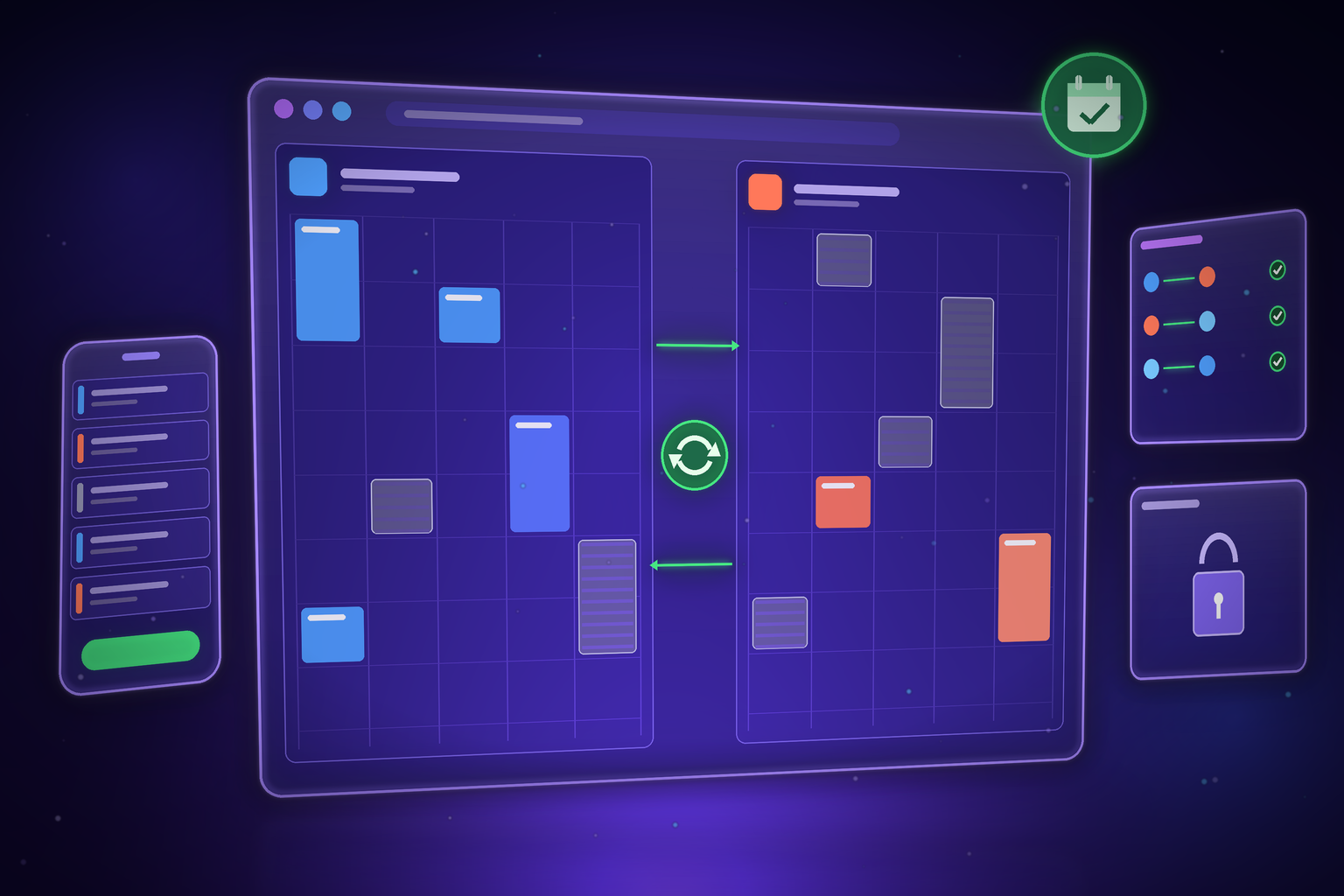
A calendar sync tool connects to Google, Outlook, and other providers through their official APIs. When an event is created, moved, or deleted in one calendar, the tool creates, updates, or deletes a matching event in the other calendar within seconds.
The key difference: the copied events are real events in the destination calendar. Outlook and Google treat them as busy time, so meeting invites, room booking, and scheduling links all respect them.
How to set it up with CALEDARO
CALEDARO is a free two-way calendar sync service built for people with several calendars across Google, Outlook, and Apple. Setup takes about 60 seconds:
- Connect your accounts: sign in with Google, Microsoft Outlook, iCloud, or a CalDAV provider such as Fastmail or Nextcloud.
- Create a sync: choose the source calendar, the destination calendar, and one-way or two-way direction.
- Choose privacy: by default, synced events show only as "Busy", so colleagues see that you are unavailable without seeing what you are doing.
- Add filters (optional): skip all-day events or sync only events whose title matches a keyword.
- Done: for Google and Outlook, new events appear in the other calendar in about 4 seconds on average, thanks to push notifications instead of polling.
What makes a dedicated calendar sync tool better
- Real-time updates: CALEDARO reports an average sync speed of about 4.3 seconds for Google and Outlook, compared with hours for ICS subscriptions.
- Privacy by default: titles, descriptions, and attendees stay hidden, and only "Busy" blocks are created.
- One-way or two-way: mirror work into personal, personal into work, or both.
- Pause and undo: stop a sync at any time and optionally remove the events it created.
- Sync health: see the status of every sync, so you know it is working.
- Unified calendar view: day, week, month, and agenda views across all your providers.
- AI assistant support: an MCP server lets Claude, Cursor, or Windsurf read your availability across calendars.
Which providers can you sync?
| Provider | Two-way sync | Notes |
|---|---|---|
| Google Calendar and Google Workspace | Yes | Personal Gmail and business Workspace accounts |
| Microsoft Outlook | Yes | Outlook.com and Microsoft accounts |
| Apple Calendar (iCloud) | Yes | Connected via CalDAV, great for iPhone and Mac users |
| CalDAV (Fastmail, Nextcloud, and others) | Yes | Any standard CalDAV server |
| iCal / ICS feeds | Read-only | Subscribed feeds cannot be written to |
Who needs two-way calendar sync?
Remote and hybrid workers
Your company runs on Outlook, but your life runs on Google. Sync personal events into your work calendar as "Busy," and colleagues stop booking calls during school pickup.
Freelancers and consultants
Each client invites you into their own Google Workspace or Microsoft 365. Sync all client calendars into one master calendar and push your availability back to each client, so no one double-books you.
Couples and families
Share when you are busy without sharing every meeting title. A one-way sync from work to a family calendar shows "Busy" blocks, which is often all your partner needs.
Anyone using scheduling links
Booking tools only check the calendars they are connected to. Syncing every calendar into the one your scheduling link reads keeps your public availability accurate.
Sync Google Calendar with Outlook on iPhone and Android
Adding both accounts to your phone is the fastest way to see everything in one app:
| Device | How to add both calendars |
|---|---|
| iPhone | Settings → Apps → Calendar → Calendar Accounts → Add Account (on older iOS: Settings → Calendar → Accounts), add Google and Outlook.com or Microsoft Exchange, turn on Calendars |
| Android | Install the Outlook app and add your Google account, or add your Microsoft account in Settings → Accounts so Google Calendar can show it |
| Outlook mobile app | Settings → Add account, sign in with Google, and Outlook shows both calendars |
Remember: this only merges the view on your phone. Your Outlook calendar still does not know about your Google events, so colleagues still see you as free. Use a sync tool if you need busy times shared between calendars.
Calendar sync pricing: free vs. paid
CALEDARO has a free-forever plan and low-cost yearly upgrades:
| Plan | Price | Calendars | Accounts | Syncs |
|---|---|---|---|---|
| Free | $0, no credit card | 2 | 2 | 1 |
| Plus | $49 per year (about $4 per month) | 20 | 5 | Up to 5 |
| Pro | $129 per year (about $11 per month) | 100 | 20 | Up to 20 |
For most people who just want Google and Outlook in sync, the free plan covers one work and one personal calendar.
Best practices for calendar sync
- Pick one "source of truth" for creating events, such as your work calendar, and sync everything else into it.
- Use "Busy" mode for personal events in work calendars. Nobody at work needs to know it is a doctor's appointment.
- Skip all-day events like birthdays and holidays, so they do not block your whole day.
- Avoid sync loops: do not create two separate one-way syncs between the same calendars, use one two-way sync instead.
- Check sync health after changing passwords or permissions on your accounts.
- Revoke old ICS links once you move to real sync, so no stale secret links stay active.
FAQ
Can I sync Google Calendar with Outlook for free?
Yes. The ICS subscription method is free but one-way and slow. CALEDARO also offers a free-forever plan with two calendars, two accounts, and one sync that can be one-way or two-way, no credit card required.
Why is my Google Calendar not updating in Outlook?
Subscribed ICS calendars are refreshed on Outlook's schedule, not in real time. Changes can take hours to appear. For updates within seconds, use a calendar sync tool that works through the Google and Microsoft APIs.
Is there a two-way sync between Google Calendar and Outlook?
Not natively. Google and Microsoft only offer one-way, read-only subscriptions. Two-way sync requires a third-party calendar sync service.
Will my colleagues see my personal events?
Only if you share them. With privacy-first sync, colleagues see a "Busy" block at the right time, without the title, description, location, or attendees.
How do I stop double bookings across multiple calendars?
Sync every calendar into the ones others book you through, so each calendar shows your real availability. Real-time, two-way sync is the most reliable way to do it.
Can I sync Outlook with Apple Calendar or iCloud?
Yes. CALEDARO supports two-way sync between Outlook, Google Calendar, iCloud, and other CalDAV providers, so you can combine any of them. Only iCal feeds are read-only.
Stop getting double-booked
The free ICS link is fine for a quick look at your other calendar. But if you want colleagues, clients, and booking links to see your real availability, you need events that actually exist in every calendar, and they need to appear in seconds, not hours.
Connect your calendars once, choose what stays private, and let sync do the rest. Your Outlook, Google, and iCloud calendars finally tell the same story.
Author: E2Easy Team | Date: September 28, 2026